

Overview
For hybrid apps built with React Native or Flutter, you must install an iOS-specific Notification Service Extension (NSE) to enable the following features:- Rich push notifications with images
- Push reception event tracking and analytics
A Notification Service Extension is a native iOS extension that allows you to
modify notification content or download images before the notification is
displayed to the user.
Prerequisites
Environment
- Xcode 16.2 or later
- CocoaPods or Swift Package Manager
- Access to your React Native or Flutter project’s iOS folder
Make sure you’ve completed the Firebase setup.Verify that the following items are in place:
- GoogleService-Info.plist is included in your iOS project
- Service Account Key file is uploaded to the Clix console
Installation Guide
1. Add Push Notification Capability
1. Add Push Notification Capability
Add the necessary capability to enable your app to receive push notifications.
- Select your main app target in Xcode.
- Navigate to the Signing & Capabilities tab.
- Click the + Capability button in the top-left corner.
-
Find and add Push Notifications from the list.
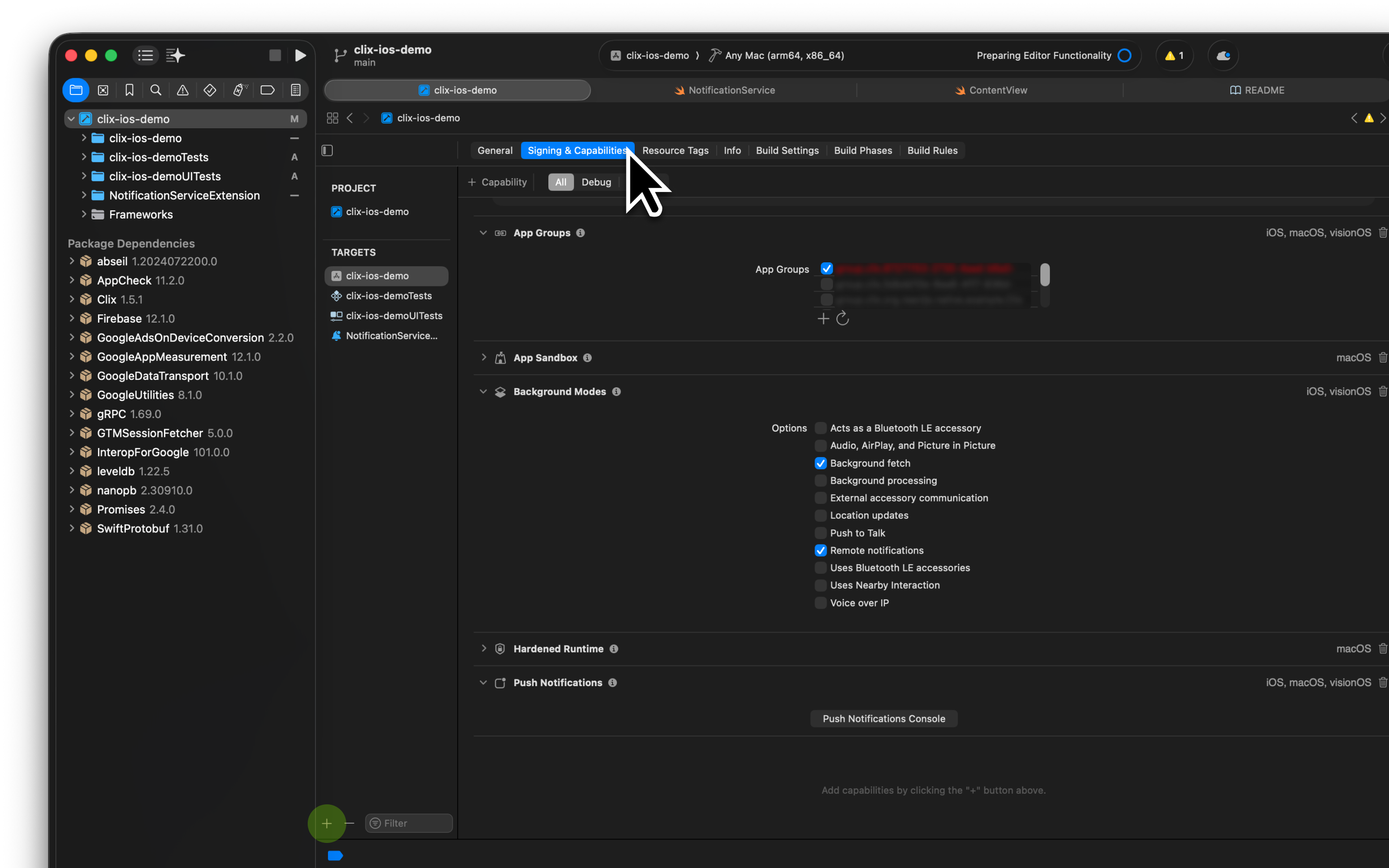
If you see “Push Notifications” in the Capabilities tab, you’re all set!
2. Create Notification Service Extension
2. Create Notification Service Extension
Create a Notification Service Extension to handle image downloads and event tracking.
- In Xcode, go to File > New > Target.
- Select Notification Service Extension from the template list and click Next.
-
Enter a name for your extension (e.g.,
ClixNotificationExtension). - Click Finish.
-
When the “Activate scheme?” dialog appears, select Cancel.
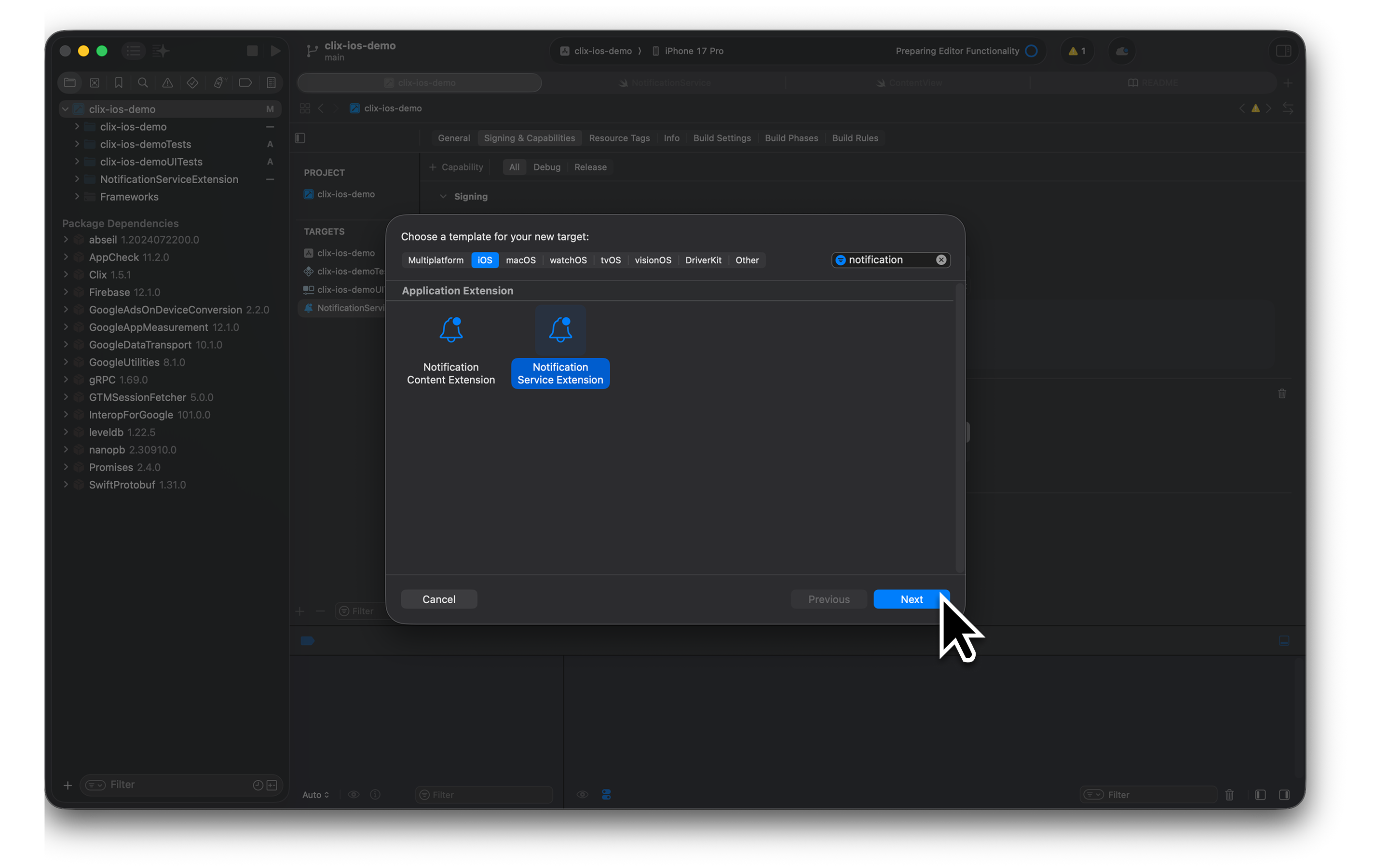
After creation, you’ll see a new folder and a
NotificationService.swift file added to your project.3. Add Clix SDK to Extension Target
3. Add Clix SDK to Extension Target
Add the Clix SDK to your Notification Service Extension so it can use Clix functionality.
For React Native users: React Native projects do not support Swift Package Manager (SPM). You must use CocoaPods (Option 2).
Option 1) Using Swift Package Manager (SPM)
- Open your iOS project (
.xcodeprojor.xcworkspace) in Xcode. - Go to File > Add Package Dependencies from the menu.
- Enter the following URL in the search field:
- Click Add Package to add the package.
- Important: Select only your extension target (e.g., ClixNotificationExtension) to install. Do NOT select the main app target.
Option 2) Using CocoaPods
-
Open your
Podfilein your iOS project root. -
Add ClixSDK only to the extension target:
Podfile
- Run the following command in your terminal:
If you encounter any build errors, please refer to the Troubleshooting section below for common issues and solutions. We recommend to go through all solutions before you build the project.
If you’re using CocoaPods, make sure to open the
.xcworkspace file for all subsequent steps.4. Add App Groups Capability
4. Add App Groups Capability
Configure App Groups to enable data sharing between your main app and the extension.
Add App Groups to Main App Target
- Select your main app target.
- Go to the Signing & Capabilities tab.
- Click the + Capability button.
- Find and add App Groups.
- Click the + button in the App Groups section.
- Create an App Group ID using the following format:
Add Same App Groups to Extension Target
- Select your extension target (e.g., ClixNotificationExtension).
- Navigate to the Signing & Capabilities tab.
- Click + Capability and add App Groups.
- Check the same App Group ID that you created for the main app.
Both your main app and extension targets must share the same App Group ID.
5. Implement NotificationService.swift
5. Implement NotificationService.swift
Modify the
NotificationService.swift file in your extension with the following code:Replace
YOUR_APP_BUNDLE_ID with your actual app identifier.ClixNotificationServiceExtension automatically handles:- Downloading images from push notification payloads
- Sending push reception events to the Clix server
- Modifying and displaying notification content
6. Build & Test
6. Build & Test
Now that setup is complete, let’s test your implementation.
1. Build Your Project
If you encounter any build errors, please refer to the Troubleshooting section below for common issues and solutions.
- Select your main app scheme in Xcode.
- Run Product > Build (⌘+B) to ensure there are no build errors.
- Install the app on a real iOS device (simulators cannot receive push notifications).
2. Test Push Notifications
- Launch the app and grant push notification permissions.
- Navigate to the Test Console page in the Clix Console.
- Find and select your registered device.
- Send a test push message with an image.
- Verify that the notification with the image is received on your device.
3. Verify Event Tracking
- Open the real-time events panel in the Clix Console.
- Check that “Push Received” events are being recorded in real-time when you receive push notifications.
If you see rich push notifications with images and push reception events are logged in the console, your installation is complete!
Troubleshooting
Build phase error with RN-Firebase (react-native-firebase)
Build phase error with RN-Firebase (react-native-firebase)
When you add a Notification Service Extension (regardless of Clix installation), you may encounter build conflicts with RN-Firebase.Error symptom:
- Build fails during the Embed Foundation Extensions phase
- Conflicts with [RNFB] Core Configuration
- In Xcode, select your main app target.
- Go to the Build Phases tab.
- Find the Embed Foundation Extensions phase.
- Drag it above the [RNFB] Core Configuration phase.
CocoaPods error after adding NSE (project.pbxproj objectVersion changed)
CocoaPods error after adding NSE (project.pbxproj objectVersion changed)
When you add a Notification Service Extension, Xcode automatically modifies the
project.pbxproj file. If the objectVersion changes, you may encounter errors during pod install depending on your CocoaPods version and Xcode version.Error symptom:pod installfails with version-related errors- Error messages about incompatible project format
- Open your project in Xcode.
- Select the project (root level) in the project navigator.
- In the File Inspector (right panel), find Project Format.
- Change the Xcode version to match your current Xcode installation.
- Save and run
pod installagain.
[CP] Embed Pods Frameworks error in NSE target
[CP] Embed Pods Frameworks error in NSE target
After installing Clix, you may see an error during the [CP] Embed Pods Frameworks build phase. This occurs because CocoaPods tries to copy dependencies to the NSE target but lacks file write permissions.Error symptom:
- Build fails at [CP] Embed Pods Frameworks phase
- Permission denied errors when copying frameworks to the extension
ENABLE_USER_SCRIPT_SANDBOXING build setting defaults to YES, which restricts script permissions.Solution:- Select your NSE target (e.g., ClixNotificationExtension) in Xcode.
- Go to Build Settings.
- Search for
ENABLE_USER_SCRIPT_SANDBOXING. - Set it to No.
- Clean and rebuild your project.
Images are not displayed
Images are not displayed
- Verify that the Clix SDK is properly added to the extension target. - Check that the App Group ID is identical in both the main app and extension targets.
- Ensure that you’re calling
super.didReceiveinNotificationService.swift. - Verify that the push payload contains a valid image URL.
Push reception events are not being recorded
Push reception events are not being recorded
- Verify that you’ve entered the correct project ID in the
register(projectId:)method. - Check that the device is connected to the internet. - Review the Xcode console for any error logs.
Build errors occur
Build errors occur
- Try restarting Xcode and running Clean Build Folder (⌘+Shift+K).
- If using CocoaPods, run
pod installagain. - If using Swift Package Manager, go to File > Packages > Reset Package Caches.
Additional Resources
Firebase Setup
If you need to set up Firebase initially, refer to this guide.
Clix iOS SDK GitHub
Check out the SDK source code and sample projects.
React Native Guide
Complete setup guide for React Native projects.
Flutter Guide
Complete setup guide for Flutter projects.