> ## Documentation Index
> Fetch the complete documentation index at: https://docs.clix.so/llms.txt
> Use this file to discover all available pages before exploring further.
# Setup Firebase
> Firebase acts as the backend for sending push notifications. Setting up Firebase properly ensures your notifications reach your users reliably.
## Create Firebase Project
Follow the instructions to create a new Firebase project.
If Firebase is already set up, skip to
**Setup Firebase Project > Step 6: Download FCM Service Account Key (JSON).**
### Things to Prepare
(iOS Only) You'll need your APNs Key (a `.p8` file provided by Apple) to enable push notifications for iOS devices. Save it securely on your local machine.
1. Log in to [Apple Developer Center](https://developer.apple.com/account/).
2. Go to **Certificates, Identifiers & Profiles**.
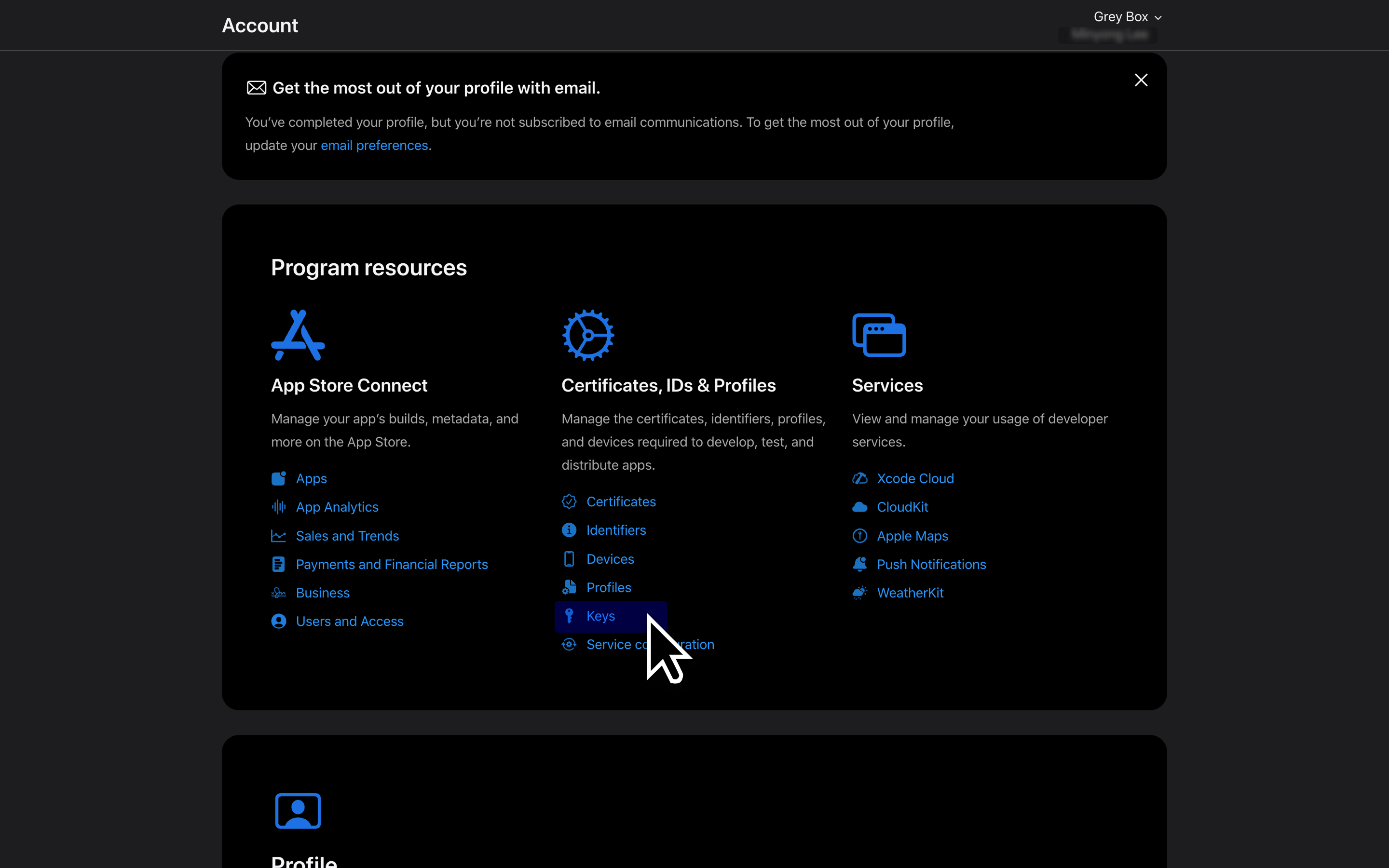 3. Select **Keys** from the sidebar, then click the **+ (plus)** button to create a new key.
4. Enter a key name (e.g., "Push Notifications") and check the **Apple Push Notifications service (APNs)** option.
3. Select **Keys** from the sidebar, then click the **+ (plus)** button to create a new key.
4. Enter a key name (e.g., "Push Notifications") and check the **Apple Push Notifications service (APNs)** option.
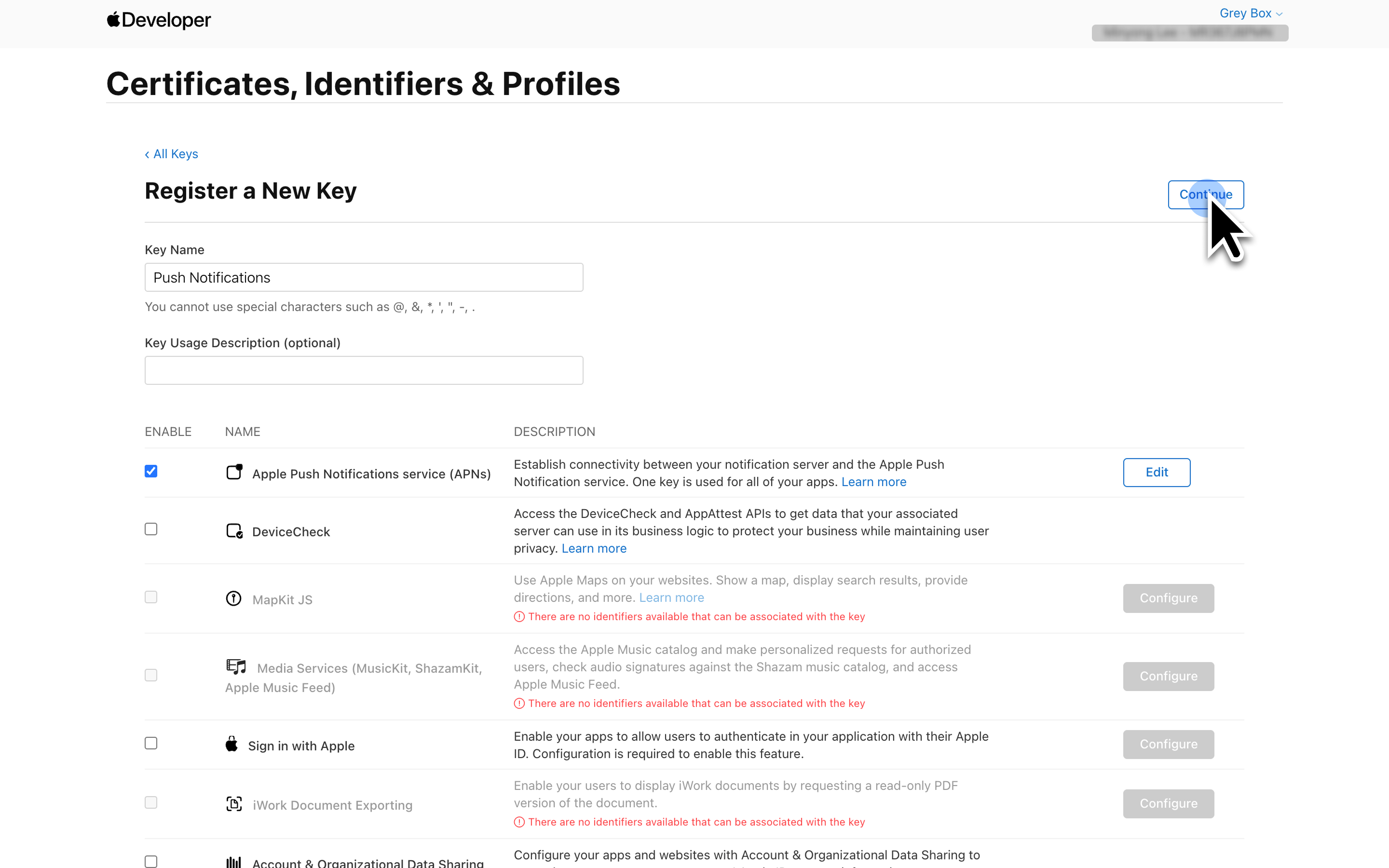 5. Click **Continue**, then review and confirm your choices.
6. Click **Register** and download your `.p8` file immediately. Store this file securely, as you will need it in Firebase setup.
### Setup Firebase Project
Sign up or log into your [Firebase
Console](https://console.firebase.google.com/)
Click **Add project** and follow the on-screen instructions. Your project
organizes your app's notification capabilities.
5. Click **Continue**, then review and confirm your choices.
6. Click **Register** and download your `.p8` file immediately. Store this file securely, as you will need it in Firebase setup.
### Setup Firebase Project
Sign up or log into your [Firebase
Console](https://console.firebase.google.com/)
Click **Add project** and follow the on-screen instructions. Your project
organizes your app's notification capabilities.
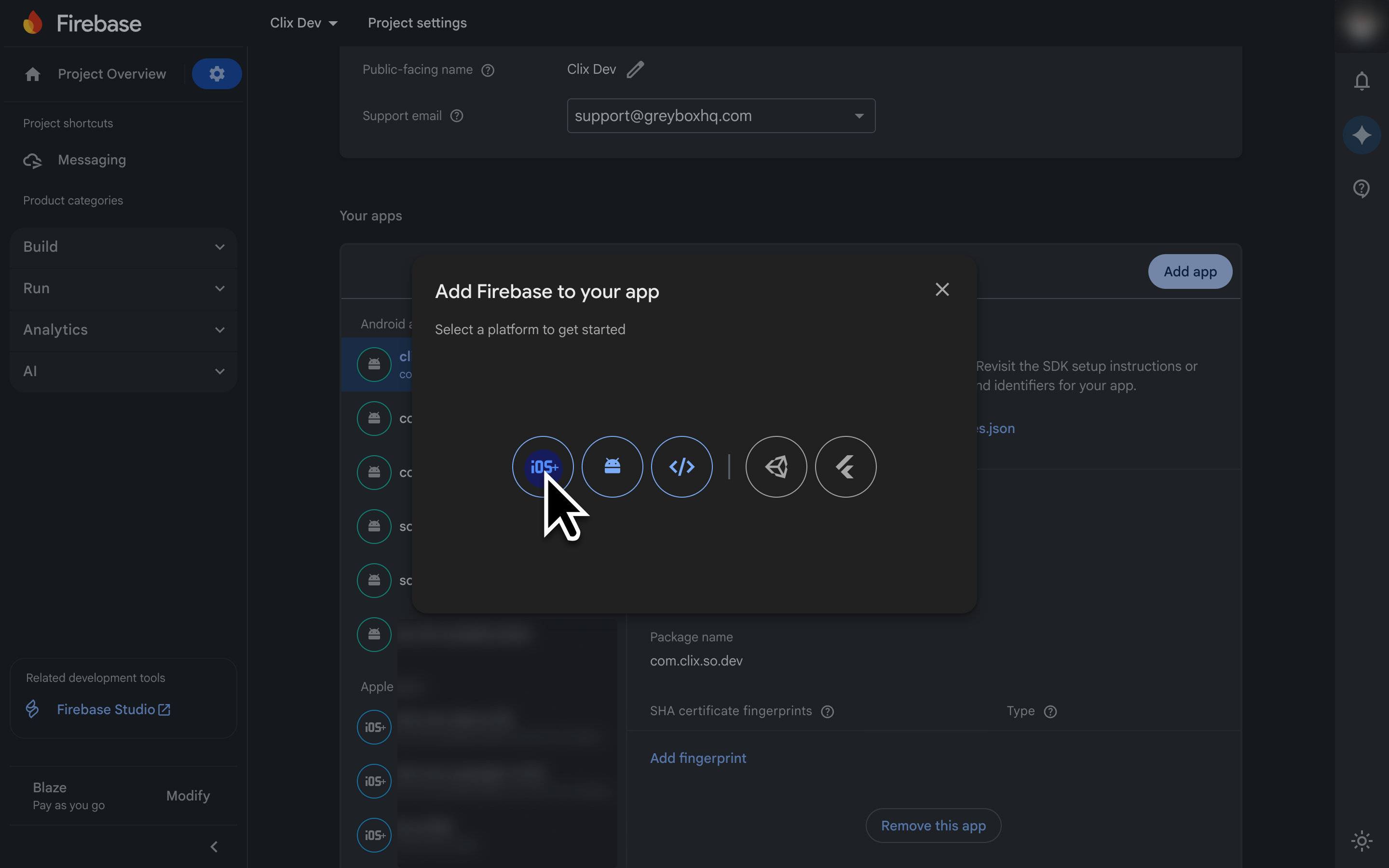
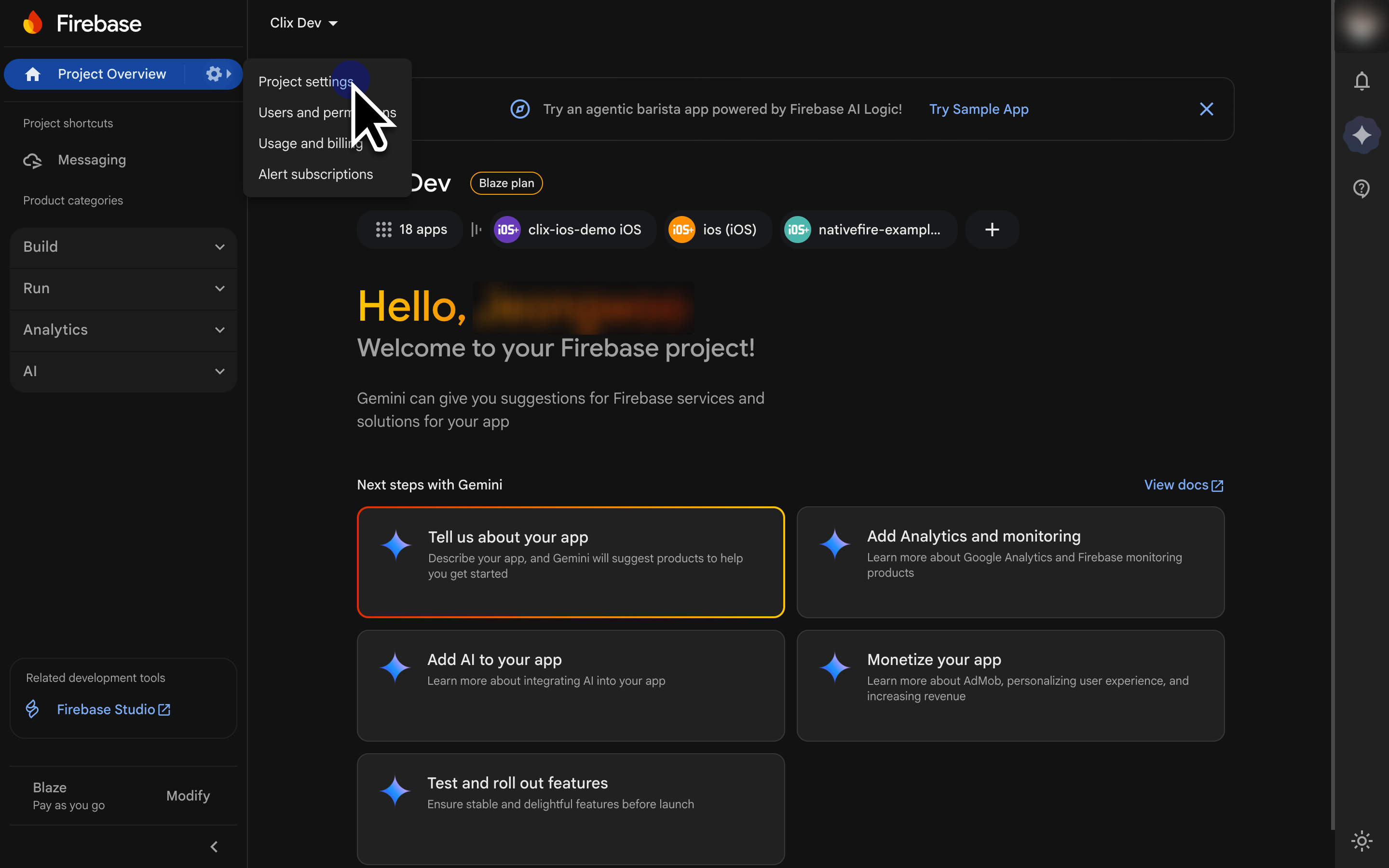 1. Navigate to your Project Overview and select **Add app**.
2. Register your app using your iOS Bundle ID or Android Package Name.
1. Navigate to your Project Overview and select **Add app**.
2. Register your app using your iOS Bundle ID or Android Package Name.
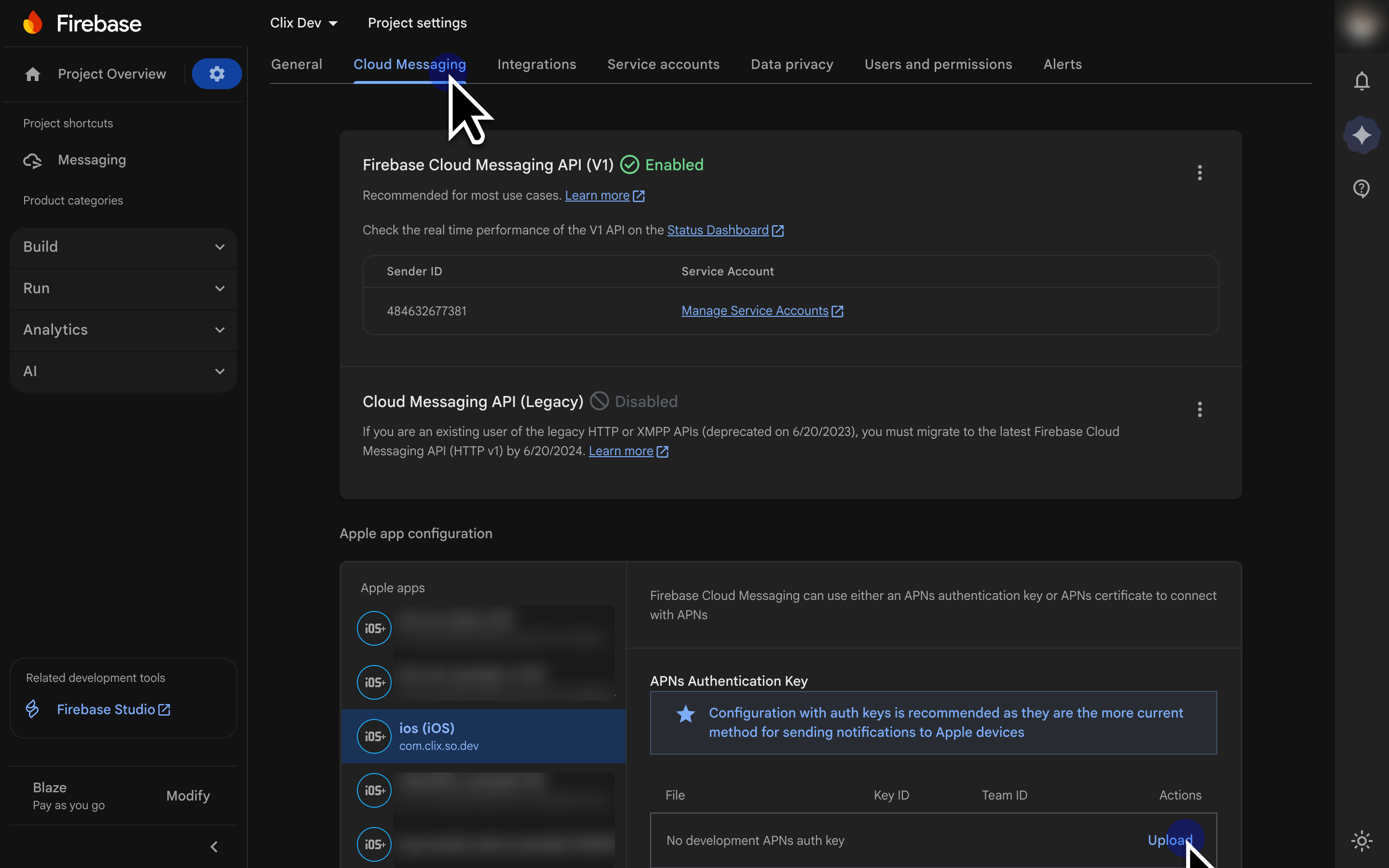
 1. Uploading this file authorizes Firebase to send notifications via Apple servers.
2. Go to **Project settings > Cloud Messaging** and upload your `.p8` file.
1. Uploading this file authorizes Firebase to send notifications via Apple servers.
2. Go to **Project settings > Cloud Messaging** and upload your `.p8` file.
 1. In the Project Setting, navigate to **Service Accounts**.
2. Locate the Firebase Admin SDK service account.
3. Click **Generate new private key**, then click **Create**.
4. This will download a `.json` private key file. Keep it secure, and upload it to the Clix console in the next step.
Upload the downloaded Firebase service account JSON file to the **Clix
console > Settings > General > Push Notification Sender Config**.
1. In the Project Setting > General, select the registered app on the 'Your apps' list.
2. Download this file from Firebase Console. 3. Add it to your project's root directory in Xcode.
1. In the Project Setting > General, select the registered app on the 'Your apps' list.
2. Download this file from Firebase Console.
3. Add it to your project's root directory in Android project.
1. In the Project Setting, navigate to **Service Accounts**.
2. Locate the Firebase Admin SDK service account.
3. Click **Generate new private key**, then click **Create**.
4. This will download a `.json` private key file. Keep it secure, and upload it to the Clix console in the next step.
Upload the downloaded Firebase service account JSON file to the **Clix
console > Settings > General > Push Notification Sender Config**.
1. In the Project Setting > General, select the registered app on the 'Your apps' list.
2. Download this file from Firebase Console. 3. Add it to your project's root directory in Xcode.
1. In the Project Setting > General, select the registered app on the 'Your apps' list.
2. Download this file from Firebase Console.
3. Add it to your project's root directory in Android project.